The best drawing tablet with pen pressure gives you more control over line weight, shading, and detail than a standard mouse or trackpad. This roundup compares 10 options, from compact entry-level tablets to display models you draw on directly.
We focus on pressure response, active area, shortcut controls, compatibility, stylus design, and overall value so you can choose a tablet that fits your workflow and budget.
Best 10 Drawing Tablet with Pen Pressure Picks for 2026
Best 16K Screen Tablet

- 16K pressure-sensitive battery-free stylus
- Fully laminated 13.3-inch FHD display
- Dial, shortcut keys, stand, and pen eraser
Best For: Detailed screen-based drawing and animation
Best Shortcut-Heavy Budget Tablet
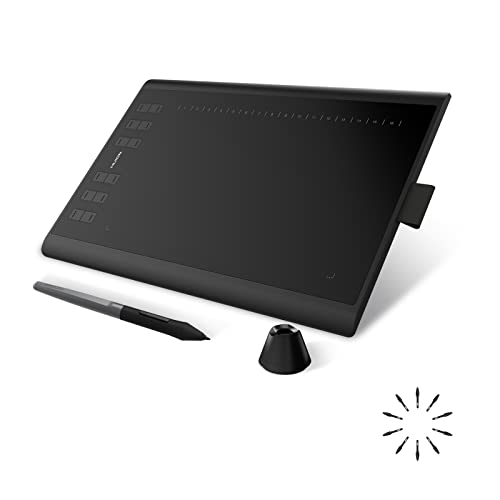
- 8,192 pressure levels with ±60° tilt
- 10-by-6.25-inch working area
- 12 press keys plus 16 soft keys
Best For: Screenless drawing with extensive shortcuts
Best Compact Starter Tablet
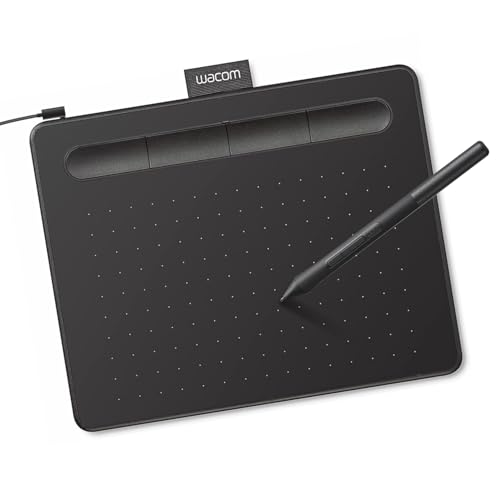
- Battery-free EMR pen with 4,096 pressure levels
- Compact 6-by-3.7-inch active area
- Four ExpressKeys and included software access
Best For: Students, beginners, and small workspaces
Best Color-Accurate 16K Display
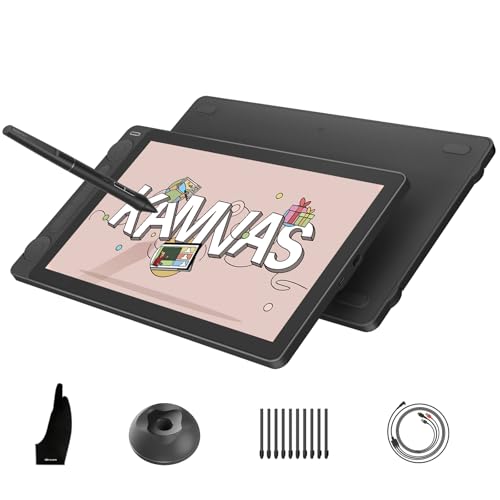
- 16K PenTech 4.0 pressure-sensitive pen
- Calibrated display with 99% sRGB coverage
- Dual dials and five silent shortcut keys
Best For: Professional illustration and color-sensitive design
Best Beginner Drawing Tablet with Pen Pressure

- 16,384 pressure levels with tilt support
- Large 10 x 6.25-inch drawing area
- Eight shortcuts and battery-free stylus
Best For: Beginners wanting a spacious, versatile pen tablet
Best Compact Drawing Tablet with Pen Pressure
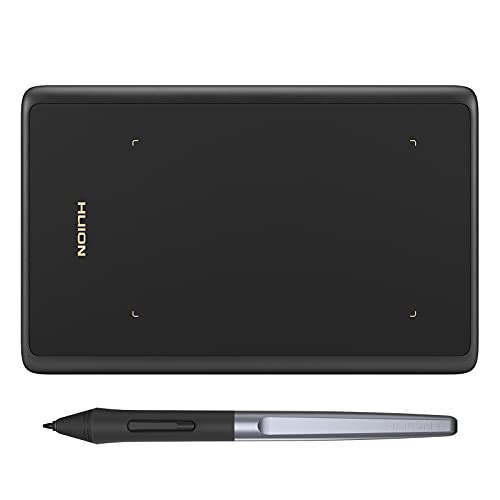
- 8,192 pressure levels and 60-degree tilt
- Compact, lightweight 4.17 x 2.6-inch active area
- Plug-and-play support for drawing and notes
Best For: Travel, small desks, students, and everyday stylus work
Best Screen Drawing Tablet with Pen Pressure
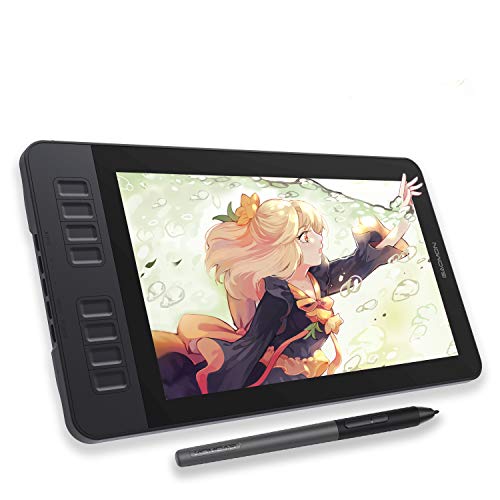
- 11.6-inch Full HD drawing display
- 8,192 pressure levels with tilt support
- Eight programmable shortcut keys
Best For: Beginners who prefer drawing directly on a connected screen
Best Wireless Pick
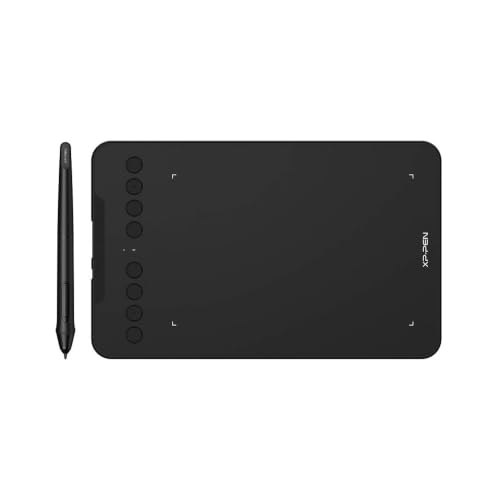
- 16,384 pressure levels with 60° tilt support
- Bluetooth 5.0 or USB connection
- Eight customizable shortcut keys
Best For: Wireless drawing, teaching, and portable creative work
Best Screen Tablet

- 11.6-inch fully laminated anti-glare display
- 8,192 pressure levels with 60° tilt
- Red dial and eight shortcut keys
Best For: Direct-on-screen drawing, painting, and editing
Best Compact Value

- 16,384 pressure levels with 60° tilt
- Compact 6.4 x 4-inch active area
- Android support and OSU-focused performance
Best For: Beginners, portable use, and gaming
Best 16K Screen Tablet – XP-PEN Artist 13.3 Pro V2
If you want a drawing tablet with pen pressure that feels responsive for detailed line work, the XP-PEN Artist 13.3 Pro V2 combines 16K pressure sensitivity with a fully laminated screen. Its battery-free stylus, built-in eraser, shortcut controls, and included stand make it a well-equipped option for artists, animators, and designers.
Best For: Detailed digital art, manga, animation, and creators who prefer drawing directly on a screen.
Pros:
- 16,384 pressure levels and low initial activation force support nuanced strokes.
- Fully laminated 13.3-inch display helps reduce parallax.
- Red dial, eight shortcut keys, pen eraser, stand, and replacement nibs are included.
- Supports compatible Windows, Mac, Chromebook, and Android devices through USB-C.
Cons:
- It is not standalone and must connect to a computer or laptop.
- Full-featured USB-C compatibility requires a compatible USB 3.1 DP 1.2 device.
- Traditional HDMI setups require a separately sold 3-in-1 cable.
Choose this model when screen-based drawing, high pressure sensitivity, and built-in workflow controls matter more than having a standalone device.
Best Shortcut-Heavy Budget Tablet – HUION Inspiroy H1060P
The HUION Inspiroy H1060P is a practical drawing tablet with pen pressure for artists who want a generous work area and plenty of customizable controls without a built-in display. Its battery-free pen provides 8,192 pressure levels, tilt support, and a comfortable 10-by-6.25-inch working surface.
Best For: Beginners, hobbyists, and experienced users who prefer a screenless tablet with many shortcuts.
Pros:
- 8,192 pressure levels and ±60° tilt support enable varied drawing gestures.
- Large 10-by-6.25-inch working area in a slim 10mm design.
- Includes 12 programmable press keys and 16 programmable soft keys.
- Works with Windows, macOS, Android, and supported Ubuntu systems.
Cons:
- It has no built-in drawing screen, so you draw while viewing your monitor.
- Mac connection requires a USB adapter.
- iPhone and iPad are not supported, and Ubuntu requires the Xorg display server.
Its combination of pressure response, tilt support, and extensive shortcut customization makes the H1060P a flexible choice for computer-based drawing and editing.
Best Compact Starter Tablet – Wacom Intuos Small
For straightforward digital art, the Wacom Intuos Small is a compact drawing tablet with pen pressure and a battery-free EMR pen. Its 4,096 pressure levels, four ExpressKeys, and plug-and-play Chromebook support make it a simple option for students, teachers, and creators getting started.
Best For: Beginners, students, teachers, photo editing, and compact desk setups.
Pros:
- Battery-free pen offers a pen-on-paper-style drawing experience.
- Four ExpressKeys provide convenient shortcut access.
- Works with Mac, Windows, Android, and Chromebook devices.
- Registration includes access to creative software and Wacom online training.
Cons:
- Its 4,096 pressure levels are lower than the other tablets in this roundup.
- The 6-by-3.7-inch active area is relatively compact.
- It is a screenless tablet and uses USB-A connectivity.
The Intuos Small is a sensible pick when portability, uncomplicated setup, and dependable pen control are more important than a large work area or display.
Best Color-Accurate 16K Display – HUION Kamvas 13 Gen 3
The HUION Kamvas 13 Gen 3 is a drawing tablet with pen pressure designed for creators who want screen-based control and color accuracy. Its PenTech 4.0 stylus delivers 16,384 pressure levels and 2g initial activation force, while the laminated Canvas Glass 2.0 surface adds a paper-textured drawing feel.
Best For: Professional illustration, animation, design, and color-sensitive creative work.
Pros:
- 16,384 pressure levels, 2g initial activation force, tilt alignment, and three pen buttons.
- 13.3-inch full-laminated display with 99% sRGB and 90% Adobe RGB coverage.
- Factory calibration is rated at ΔE<1.5 and includes a calibration certificate.
- Two dials and five silent press keys provide adjustable workflow controls.
Cons:
- It is not standalone and must connect to a computer or laptop.
- Android use requires USB 3.1 Gen 1 and DP 1.2 support.
- Its advanced color and control features may be more than casual users need.
With high-resolution pressure input, a textured laminated surface, calibrated color, and dual dials, the Kamvas 13 Gen 3 is well suited to demanding screen-based creative workflows.
Best Beginner Drawing Tablet with Pen Pressure – XP-Pen Deco 01 V3
The XP-Pen Deco 01 V3 is a strong pick if you want a drawing tablet with pen pressure that offers generous workspace and room to grow. Its 16,384 pressure levels, 60-degree tilt support, battery-free stylus, and 10 x 6.25-inch active area provide detailed control for sketching, shading, and digital painting.
Best For: Beginners and amateur artists who want a large, portable tablet with customizable shortcuts and broad device compatibility.
Pros:
- 16,384 pressure levels and up to 60 degrees of tilt support for nuanced strokes.
- Large 10 x 6.25-inch drawing area with eight customizable shortcut keys.
- Battery-free stylus requires no charging and includes replacement nibs.
- Supports Windows, macOS, Android, Chrome OS, and Linux, along with major creative software.
Cons:
- It is a pen tablet rather than a display, so you draw while viewing your computer or device screen.
- Android support requires Android 10.0 or later.
Choose the Deco 01 V3 when pressure sensitivity, a spacious work surface, and beginner-friendly controls matter more than having an integrated screen. Its thin build and included accessories also make it practical for portable practice.
Best Compact Drawing Tablet with Pen Pressure – HUION Inspiroy H420X
The HUION Inspiroy H420X is a compact drawing tablet with pen pressure designed for limited desk space and portability. Its battery-free 8,192-level stylus, 300 PPS report rate, and plug-and-play setup make it suitable for drawing, handwriting, annotations, and other everyday tasks.
Best For: Students, beginners, and mobile users who need a lightweight tablet for drawing, notes, online teaching, or casual creative work.
Pros:
- Battery-free stylus provides 8,192 pressure levels and 60-degree tilt support.
- Compact 4.17 x 2.6-inch active area fits small workspaces and travel bags.
- Two pen buttons support quick functions such as right-clicking and erasing.
- Works with Windows, macOS, Android, Linux, and many creative and productivity applications.
Cons:
- The small active area may feel restrictive for broad gestures or large illustrations.
- It is not compatible with iOS.
The H420X makes the most sense when portability and simplicity are priorities. It sacrifices drawing space compared with larger models, but its slim design, pressure-sensitive pen, and wide software support suit quick sketches and practical stylus tasks.
Best Screen Drawing Tablet with Pen Pressure – GAOMON PD1161
The GAOMON PD1161 is a pen display for artists who prefer to draw directly on the screen. This drawing tablet with pen pressure combines an 11.6-inch Full HD IPS display, a matte anti-glare surface, and a battery-free stylus with 8,192 pressure levels and tilt support for a more direct sketching experience.
Best For: Beginners, students, and designers who want an on-screen drawing workflow and customizable shortcut keys.
Pros:
- 11.6-inch Full HD screen lets you sketch, paint, and edit directly on the display.
- Battery-free stylus offers 8,192 pressure levels and tilt functionality.
- Matte film reduces glare and provides a paper-like drawing feel.
- Eight programmable side keys and two pen buttons help streamline workflows.
Cons:
- It is not standalone and must connect to a Windows or Mac computer.
- Connection requires available HDMI and USB ports, with a converter potentially needed.
- Power may require the included adapter if the computer cannot supply enough power.
The PD1161 is the strongest fit here if drawing directly on the image matters more than portability. Its screen and shortcut controls can make illustration feel intuitive, but the required computer connection should be part of your setup plan.
Best Wireless Pick – XP-Pen Deco mini7W
The XP-Pen Deco mini7W is a compact drawing tablet with pen pressure support, offering 16,384 pressure levels, wireless connectivity, and a battery-free stylus. It is a practical choice for artists, teachers, and remote workers who want flexible desktop or mobile compatibility.
Best For: Wireless drawing, online teaching, portable creative work, and users who want extensive device compatibility.
Pros:
- Bluetooth 5.0 and USB connectivity provide wired or wireless flexibility.
- Battery-free pen offers 16,384 pressure levels and 60° tilt support.
- Eight customizable shortcut keys help speed up common tasks.
- Works with Windows, Mac, Android, ChromeOS, and Linux.
Cons:
- The 7 x 4-inch active area may feel compact for users who prefer more drawing space.
- It is a pen tablet rather than a display, so drawing is done while viewing a separate screen.
Choose the Deco mini7W if wireless freedom and broad compatibility matter more than having a built-in display. Its high pressure sensitivity, tilt response, and shortcut keys give it a strong feature set for its portable size.
Best Screen Tablet – XP-Pen Artist 12 Pro
The XP-Pen Artist 12 Pro combines a built-in 11.6-inch display with pressure-sensitive pen input, making it a direct-drawing option for digital artists. Its fully laminated screen, battery-free stylus, and customizable controls support detailed drawing and editing.
Best For: Artists who prefer drawing directly on a screen, digital painting, animation, editing, and remote annotation.
Pros:
- Fully laminated anti-glare display is designed to reduce parallax.
- Battery-free stylus provides 8,192 pressure levels and 60° tilt support.
- Red dial and eight customizable shortcut keys support efficient workflows.
- Supports Windows, macOS, ChromeOS, and Linux.
Cons:
- It must connect to a computer and cannot operate as a standalone tablet.
- The 11.6-inch display may be limiting for users who want a larger canvas.
- Connection uses a 3-in-1 cable rather than wireless connectivity.
The Artist 12 Pro is the strongest fit here for users who want a screen-based drawing experience. Its direct-display workflow and low-parallax design make it more intuitive, while the required computer connection should be considered before buying.
Best Compact Value – XP-Pen IT640
The XP-Pen IT640 is a compact drawing tablet with pen pressure support, a 6.4 x 4-inch active area, and a battery-free stylus rated for 16,384 pressure levels. Its Android support, programmable keys, and OSU-focused performance make it versatile for beginners, students, and gamers.
Best For: Beginners, portable drawing, Android use, digital signatures, photo editing, and OSU gaming.
Pros:
- 16,384 pressure levels and 60° tilt support capture nuanced strokes and shading.
- Slim, lightweight design and included OTG adapter support Android portability.
- Eight customizable soft keys provide quick access to frequently used tools.
- Compatible with Windows, macOS, Android, ChromeOS, and HarmonyOS.
Cons:
- It is not standalone and requires a connected computer or compatible device.
- The 6.4 x 4-inch active area is smaller than many full-size drawing tablets.
- USB connectivity means it does not offer wireless operation.
The IT640 is a practical compact option when portability and cross-platform support are priorities. It delivers high pen-pressure sensitivity and useful shortcut controls, but artists wanting a larger workspace or wireless connection should consider a different model.
How We Picked the Best Drawing Tablet with Pen Pressure
We selected models across several use cases and price ranges, including compact tablets for beginners, larger graphics tablets for desktop work, and pen displays with built-in screens. Our comparison prioritizes pressure sensitivity, pen performance, active drawing area, shortcut keys, connection options, operating-system support, and software compatibility.
Pressure-level numbers are useful, but they are not the only measure of drawing quality. Pen calibration, initial activation force, tilt support, surface texture, and driver stability can have a greater effect on everyday control. We also considered whether each tablet uses a battery-free stylus and how easily it can fit into illustration, photo-editing, note-taking, or online teaching workflows.
Quick Comparison
- Best for screen-based drawing: XP-PEN Artist 13.3 Pro V2 and HUION Kamvas 13 (Gen 3).
- Best compact beginner options: Wacom Intuos Small and HUION H420X.
- Best larger pen tablets: HUION Inspiroy H1060P and XPPen Deco 01 V3.
- Best for shortcut control: Models with eight or more programmable keys, including the Inspiroy H1060P and Artist 13.3 Pro V2.
- Best for portability: XPPen Deco mini7W and the smaller 6 x 4-inch XPPen IT640.
Key Buying Factors for a Drawing Tablet with Pen Pressure
Pressure Sensitivity and Pen Feel
A responsive stylus should translate light and firm strokes predictably. High pressure ratings can provide fine control, but a well-tuned pen and dependable drivers matter just as much. Tilt support is particularly useful for brush-based illustration and shading.
Screen or Screenless Design
A pen display lets you draw directly on the image, which feels intuitive and can reduce the learning curve. Screenless tablets are generally lighter, less expensive, and easier to position ergonomically, but they require hand-eye coordination between the tablet and monitor.
Active Area and Shortcut Keys
A larger active area gives you more room for broad strokes, while a smaller tablet is easier to carry and can work well with limited desk space. Programmable keys can speed up zooming, undoing, switching brushes, and changing tools.
Compatibility and Setup
Check support for your computer, Chromebook, Android device, and preferred creative software before buying. Also confirm the required cables, driver availability, display connections, and whether the included stylus is battery-free.
Who Should Buy Which Drawing Tablet with Pen Pressure?
Choose a screen tablet if you want the most direct drawing experience or are moving from traditional art to digital work. The Artist 13.3 Pro V2, Kamvas 13 (Gen 3), GAOMON PD1161, and Artist12 Pro are aimed at users who value an integrated display.
Choose a screenless tablet if affordability, portability, or a clean multi-monitor setup matters most. The Wacom Intuos Small, Deco 01 V3, Inspiroy H1060P, H420X, Deco mini7W, and IT640 cover a broad range of sizes and features.
For beginners and students, start with a compact model that has reliable pressure control and simple connectivity. For experienced illustrators, prioritize a larger active area, tilt support, shortcut keys, and a display with comfortable viewing angles. Before purchasing, verify current driver support and the exact accessories included with the configuration you select.